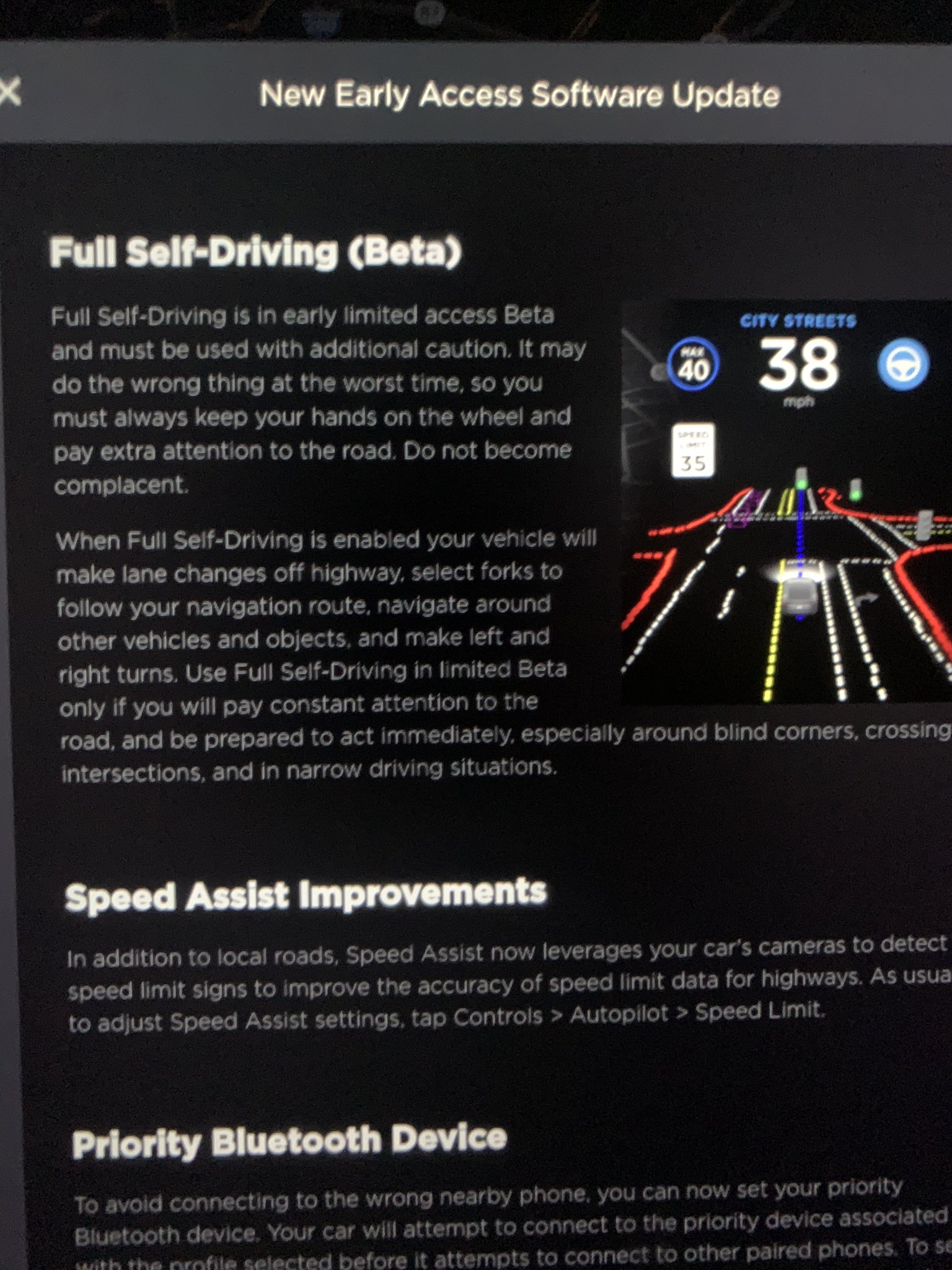
In addition to local roads, Speed Assist now leverages your car’s cameras to detect speed limit signs to improve the accuracy of speed limit data for highways. As usual, to adjust Speed Assist settings, tap Controls > Autopilot > Speed Limit.
USA, HW3
Speed Assist Improvements
Speed Assist now leverages your car’s cameras to detect speed limit signs to improve the accuracy of speed limit data on local roads. Detected speed limit signs will be displayed in the driving visualization and used to set the associated Speed Limit Warning. As usual, to adjust Speed Assist settings, tap Controls > Autopilot > Speed Limit.
HW3.0, Kanada, Australien, Neuseeland
Priority Bluetooth Device
To avoid connecting to the wrong nearby phone, you can now set your priority Bluetooth device. Your car will attempt to connect to the priority device associated with the profile selected before it attempts to connect to other paired phones. To set your priority device, tap the Bluetooth icon on the top of your touchscreen, select your preferred phone and tap Priority Device.
Mobile App - Vent Windows
You can now vent all of your windows from the Tesla mobile app.
Model S
Glovebox PIN
Protect the valuables in your glovebox with a 4-digit PIN. Tap Controls > Safety & Security > Glovebox PIN on the touchscreen to create your PIN.
Charge Port Inlet Heater
Your car can now use the charge port inlet heater to help defrost the inside of the charge port. The charge port inlet heater can be activated in cold ambient temperatures by enabling preconditioning using the mobile app, activating the rear defrost button on the vehicle’s touchscreen, or preconditioning the vehicle using scheduled departure.
Verbesserungen des Geschwindigkeitslimitassistenten
(USA, HW3)
Der Geschwindigkeitslimitassistent nutzt die Fahrzeugkameras, um Geschwindigkeitsbegrenzungsschilder zu erkennen und dadurch die Genauigkeit der Geschwindigkeitsbegrenzungsdaten zu erhöhen, außer auf Anliegerstraßen nun auch auf Autobahnen. Wie gewohnt können die Einstellungen des Geschwindigkeitslimitassistenten bearbeitet werden unter Fahrzeug > Autopilot > Geschwindigkeitslimit.
Verbesserungen des Geschwindigkeitslimitassistenten
(HW3, Australien, Kanada, Neuseeland)
Der Geschwindigkeitslimitassistent nutzt nun die Fahrzeugkameras, um Geschwindigkeitsbegrenzungsschilder zu erkennen und dadurch die Genauigkeit der Geschwindigkeitsbegrenzungsdaten auf Straßen der Umgebung zu erhöhen. Erkannte Geschwindigkeitsbegrenzungsschilder werden in der Fahrdarstellung angezeigt sowie zum Einstellen der mit der Begrenzung verbundenen „Warnung wenn über Limit“ verwendet. Wie gewohnt können die Einstellungen des Geschwindigkeitslimitassistenten bearbeitet werden unter Fahrzeug > Autopilot > Geschwindigkeitslimit.
Priorisiertes Bluetooth-Gerät
Um zu verhindern, dass eine Verbindung mit einem falschen Handy in der Nähe erfolgt, können Sie nun Ihr priorisiertes Bluetooth-Gerät festlegen. Ihr Fahrzeug wird erst versuchen sich mit dem priorisierten Gerät des gewählten Fahrerprofils zu verbinden, bevor es eine Verbindung mit anderen gekoppelten Geräten versucht. Um Ihr priorisiertes Gerät zu bestimmen, tippen Sie auf das Bluetooth-Symbol am oberen Rand des Bildschirms, wählen Sie das gewünschte Gerät aus und tippen Sie dann auf „Priorisiertes Gerät“.
Mobile App - Fenster auf Spalt
(Model S)
Sie können mit der Tesla Mobilen App nun alle Fenster auf Spalt setzen.
Hinweis: diese Funktion benötigt Tesla Mobile App Version 3.10.0 oder neuer.
Handschuhfach-PIN
Schützen Sie die Wertgegenstände in Ihrem Handschuhfach mit einer 4-stelligen PIN. Wählen Sie am Touchscreen „Fahrzeug > Sicherheit > Handschuhfach-PIN“, um Ihre PIN festzulegen.
Ladeanschluss-Einlassheizung
Sie können die Ladeanschluss-Einlassheizung nun zum Enteisen des Inneren des Ladeanschlusses nutzen. Die Ladeanschluss-Einlassheizung kann bei kalter Außentemperatur durch Einschalten der Vorklimatisierung mittels der Mobilen App, durch Einschalten der Heckscheibenheizung über den Touchscreen des Fahrzeugs oder durch Vorklimatisieren des Fahrzeuges über die Funktion „Geplante Abfahrtszeit“ aktiviert werden.
The driving visualization has been improved to better support Full Self-Driving capabilities by increasing the display size to show additional surrounding information. The next turn will now appear above the visualization if the navigation turn list is covered by another app.
With the larger visualization, select items have slightly moved but will continue to look and behave the same. Some notable differences include the following:
Quick access to the backup camera and wipers has moved to the bottom bar.
Autopilot set speed is now displayed directly below the speedometer and can continue to be adjusted using the right steering wheel scroll wheel. The speed will turn blue when Autopilot is engaged.
Vehicle Information
The Tesla „T“ has been removed from the top status bar - the same information can be found by tapping Controls > Software.
Full Self-Driving (Beta)
Full Self-Driving is in early limited access Beta and must be used with additional caution. It may do the wrong thing at the worst time, so you must always keep your hands on the wheel and pay extra attention to the road. Do not become complacent.
When Full Self-Driving is enabled your vehicle will make lane changes off highway, select forks to follow your navigation route, navigate around other vehicles and objects, and make left and right turns. Use Full Self-Driving in limited Beta only if you will pay constant attention to the road, and be prepared to act immediately, especially around blind corners, crossing intersections, and in narrow driving situations.